
Important
This repository contains the full source code for the Copilot Studio VS Code extension. The build currently requires internal NuGet packages and is not externally reproducible yet. We are replacing the internal dependency (Dataverse authoring SDK) with PAC CLI delegation, which will make the build fully self-contained with public packages. See CONTRIBUTING.md for details and current status.
The Copilot Studio extension for Visual Studio Code is designed to enhance the development experience of Microsoft Copilot Studio agents. It provides language support, IntelliSense code completion and suggestions, and authoring capabilities for Copilot Studio agent components.
After installation, the extension prompts you to sign in to Copilot Studio. It can then show you a list of the agents associated with your environment. Clone an agent to see its editable components, including knowledge sources, actions, topics, and triggers.
-
Select the Copilot Studio icon in the primary side bar of Visual Studio Code. The extension asks for your permission to sign in.
-
Select Allow, and sign in with the appropriate credentials for your Copilot Studio environment.
-
(Optional) Open the desired agent in Copilot Studio and copy its URL from your browser's address bar.
-
In the Copilot Studio panel of Visual Studio Code, select Clone agent.
-
Select your agent (marked with "from clipboard" if you already copied the URL); otherwise, select the desired environment and then select the desired agent. The extension prompts you to select a folder to hold your agent's files (similar to a local repository).
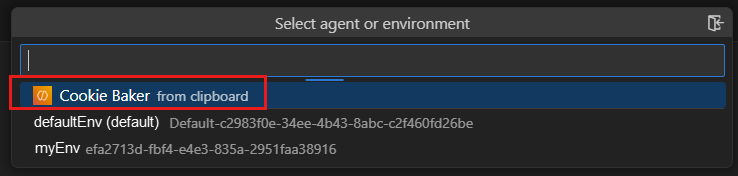
-
Select the desired folder.
To edit any component, open the corresponding file and make the desired changes. Since Visual Studio Code natively supports YAML files, the Copilot Studio extension supports IntelliSense code completion and can provide guided tips.
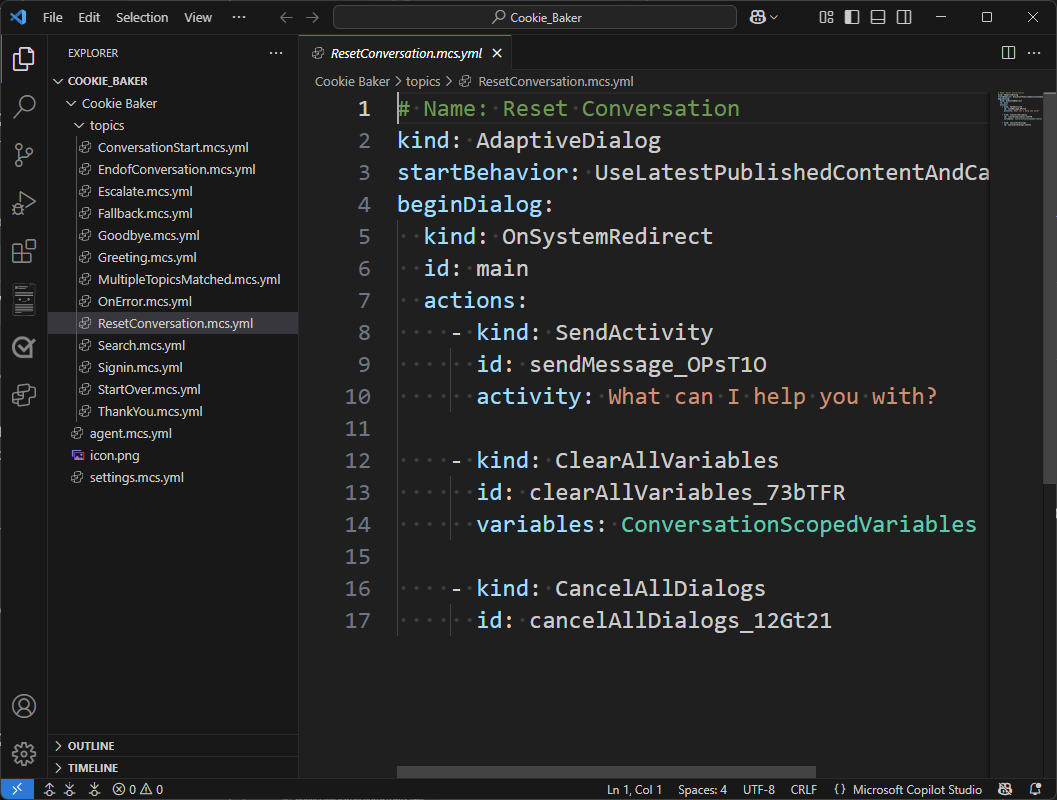
The Copilot Studio extension keeps your local workspace in sync with your agent. Use the sync commands in the Agent Changes view to manage changes between your local files and your Copilot Studio agent.
- Preview changes — See what's different between your local workspace and the agent in Copilot Studio, without modifying any files.
- Get changes — Download the latest changes from your Copilot Studio agent into your local workspace.
- Apply changes — Upload your local edits to your Copilot Studio agent.
When you apply changes, they are saved directly to your agent's environment. This is a live editing experience—your agent is updated immediately.
src/
  LanguageServers/                        # .NET language server (C#)
    CLaSP/                                # Common Language Server Protocol framework
    PowerPlatformLS/                      # Language server solution (11 projects)
  vscode-extensions/                      # VS Code extension (TypeScript)
    microsoft-powerplatformlang-extension/  # Extension entry point
    shared/                               # Shared TypeScript modules
docs/                                     # Architecture documentation
assets/                                   # Shared assets (BotSchema.json)
build/                                    # Build infrastructure
For architecture details, see the docs/ folder.
See CONTRIBUTING.md for build prerequisites, current build state, and contribution guidelines.
To help us resolve problems more efficiently, please use the custom issue reporting command built into this extension. It automatically includes helpful diagnostic information like your session ID.
✅ Recommended: use the custom Help: Copilot Studio: Report Issue command
- Open the Command Palette (Ctrl+Shift+P or Cmd+Shift+P on macOS)
- Type and select: Help: Copilot Studio: Report Issue

- A form will appear with a pre-filled Session ID, fill out the form and submit. This ensures we receive context to investigate your issue quickly.

This project has adopted the Microsoft Open Source Code of Conduct. See CODE_OF_CONDUCT.md for details.